Restore old photos without changing the faces
Most AI photo restorers change faces because they don't repair the photo. They regenerate it, filling blurry or damaged areas with features learned from millions of other faces, so people can come out smoother, younger or subtly different. Colorify works in two separate steps. First it repairs tears, scratches, stains and fading and sharpens faded detail, keeping every face as it was. Then it adds color, and only the color changes, so faces, framing and fine detail aren't redrawn. Moles, freckles and other real features are kept. Very large missing pieces may not come back fully, so always compare the result with your original.
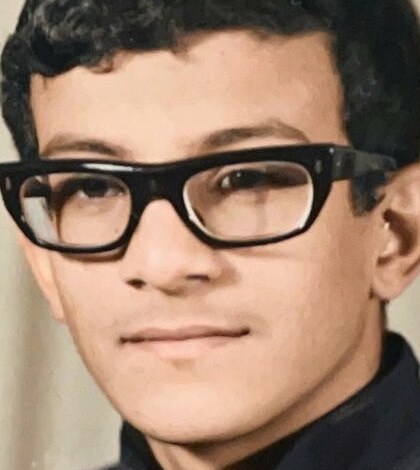
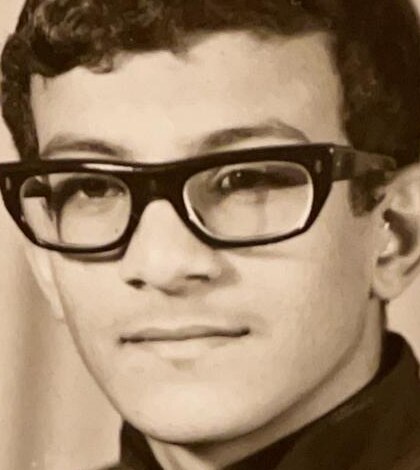 BeforeAfter
Why AI restoration changes faces
There are two very different ways to fix an old photo. Repair works with the pixels that are already there: it closes a crack, lifts a stain, evens out fading. The person in the photo stays the person in the photo. Regeneration treats your photo as a rough guide and paints a new image over it. Where the original is blurry or damaged, the model fills the gap with a statistically likely face, assembled from patterns it learned from millions of other people.
A likely face is not your person's face. That's why a regenerated result can look crisp and convincing and still not look like Grandma: the eyes sit a little differently, the nose is straighter, the skin is smoother than it ever was, a mole has gone. Each change is small. Together they make a stranger.
The four usual triggers
- Small faces. In a group photo or a distant shot, a face may be only a few dozen pixels wide, so there is little real detail to keep and a lot to invent.
- Blur. Soft focus, camera shake or a blurry scan leaves the model guessing at edges, and its guesses drift toward an average face.
- Damage across the eyes, nose or mouth. A crease or tear through the features removes exactly the parts that make a face recognizable.
- “Enhance” and beauty settings. Options that smooth skin, brighten eyes or even out features are designed to change the face. Turn them off for family photos.
Why chatbots do it too
When you ask a chat assistant such as ChatGPT or Gemini to restore a photo, it generally creates a new image based on yours rather than editing the original. Faces, clothing and even backgrounds can shift, and asking again gives you a different person each time.
How Colorify restores a photo without changing the face
Colorify keeps repair and color apart, so neither step gets to redraw the person.
Step 1: repair first
Tears, cracks, scratches, creases, stains, spots, faded patches, paper texture and blur are repaired, and faded detail is sharpened, while every face is kept as it was. Each damaged spot is filled by continuing what surrounds it, and nobody is beautified, slimmed or made to look younger.
Step 2: then color, and only the color
The colored version keeps the repaired photo's light, shadow and detail, and takes only the color from the AI. Every eyelash, wrinkle and strand of hair in the final photo comes from the repaired photo, not from the color step. So faces, framing and fine detail aren't redrawn when color is added.
You choose, and you check
You get two versions with different coloring, because there is more than one believable way to color a black and white photo. Drag across the photo to compare before and after, pick the one you like, and download it. Your photos are saved privately to your account.
Real features stay
Moles, freckles and other real features are kept. They are part of the person, not damage to be cleaned away.
OriginalColorify Original
 Colorify
What no tool can do
Any honest restorer has limits, and knowing them is how you judge a result.
- Damage through a face. If a tear or scratch runs through a face, the repair fills that strip from the detail around it. Small damage usually disappears cleanly; a wide gap is a best reconstruction, so compare it with your original.
- Missing pieces. When part of a photo is simply gone, any tool has to put something there. Large missing pieces of a photo may not come back fully.
- Color is an informed guess. A black and white photo doesn't record color, so no tool can know the exact shade of a dress or a car. That's one reason you get two versions to choose from. If the family remembers the real colors, trust them over any AI.
- Blur from the original camera. If the photo was out of focus when it was taken, it can be made clearer, but detail the camera never captured can't be recovered, only imitated.
How to check a restored face: a 60-second checklist
Whatever tool you use, run through this before you print or share a restored photo.
- Line them up. Open the original and the result side by side, at the same zoom. On Colorify, drag across the photo to switch between the two.
- Eyes. Check the spacing between the eyes, their shape, and which way each one looks. Eyes are where a redrawn face shows first.
- Nose. Compare the bridge, the tip and the nostrils. A nose that has become narrower or straighter is a common sign of drift.
- Mouth. Look at the lip shape and the expression. A smirk should still be a smirk, and teeth shouldn't appear where there were none.
- Jaw and hairline. Trace the outline of the face, the chin and the hairline. These change when a tool 'improves' a face.
- Marks and accessories. Find the moles, freckles, scars, wrinkles and glasses in the original, then find each one in the result.
- Ask someone who knew them. A relative who knew the person will spot in seconds what a side-by-side can miss.
Tip: try your first restoration on a photo of someone you know well, perhaps yourself or a parent when younger. You'll judge the result far better than with a face you've only seen in old pictures.
Getting the best result from your scan
The more real detail the photo carries, the less any tool has to guess. A few habits help:
- Scan the print flat. If you use a phone, photograph it in even, indirect daylight, straight on, with no glare or shadow across the faces.
- Don't tape or glue a torn print back together first. The Library of Congress advises against using tape, glue or other adhesives on photographs (Library of Congress: Care, Handling and Storage of Photographs). Scan it as it is and let the restoration close the tear on the digital copy.
- Never fold or flatten a curled print by force. The National Archives suggests keeping a torn photo in a polyester sleeve and asking a photograph conservator about badly damaged originals (National Archives: Holdings Maintenance, Photographs).
- If the face you care about is small in a big group photo, crop closer to the people before uploading, so more of the picture is spent on the face.
- Colorify accepts JPG, PNG and most other image formats. Scans and phone photos of prints both work.
Restore, colorize, or both?
Colorify always does both, in that order: the photo is repaired first, then colored, for one credit. The repair isn't a separate option you have to remember to switch on. Colorify doesn't currently offer a black and white download of the repaired photo on its own.
Questions
Does AI photo restoration change faces?
It often does. Many AI tools regenerate a damaged or blurry face rather than repairing it, so the result can look smoother, younger or like a slightly different person. Whether it happens depends on how the tool works, so it's worth checking any result against the original.
Why does AI make my relatives look like different people?
Generative models fill in missing detail with what a face usually looks like, learned from millions of other faces. Your grandmother's features get nudged toward an average face. The smaller, blurrier or more damaged the face, the more the tool has to guess.
How can I restore an old photo without changing the face?
Use a tool that repairs the photo instead of redrawing it, start from the best scan you can make, and avoid beauty or face-enhancement settings. Then compare the result with the original using the checklist on this page.
How does Colorify keep faces the same?
It works in two steps. First it repairs the damage and sharpens faded detail, keeping every face as it was. Then it colors the photo, and the colored version keeps the repaired photo's light, shadow and detail, taking only the color from the AI.
Will colorizing change the face?
Not on Colorify. The color step adds color only: the features, the framing and the fine detail all come from the repaired photo, so the face isn't redrawn when color is added.
What if a tear or scratch goes right through a face?
The repair fills that strip from the detail around it. Small damage usually disappears cleanly; a wide gap is a best reconstruction, so compare it with your original. Large missing pieces of a photo may not come back fully.
Can ChatGPT or Gemini restore a photo without changing the face?
Chat assistants generally create a new image from your photo, so faces, clothes and backgrounds can shift between versions. They can look impressive, but check the face carefully before you share or print the result.
How do I check whether a restored face is still accurate?
Put the original and the result side by side at the same zoom, then compare the eyes, nose, mouth, jawline and hairline. Make sure moles, wrinkles and glasses are still there, and show it to someone who knew the person.
Will it remove wrinkles, moles or freckles?
No. Colorify treats moles, freckles and other real features as part of the person, not as damage, and keeps them. Colorify doesn't beautify or smooth skin, so wrinkles and expression lines stay too.
What kind of scan gives the best result?
A flat, sharp, evenly lit scan or phone photo of the print, with no glare. JPG, PNG and most other formats work. If the face is small in a big group photo, crop closer to the people before uploading.
How much does it cost to try?
Your first photo is free when you create an account. After that it's one credit per photo, in packs of 10 for $5, 25 for $10 or 100 for $30. There's no subscription, and credits don't expire. Pay per photo, no subscription.
Do you keep my photos?
Your photos are saved privately to your account so you can come back to them, and only you can see them. You can delete one photo or all of them at any time, which removes them from our storage permanently. See the privacy policy for details.
See your family photos restored, in color
Restore your first photo →First photo free · No subscription · ~30 secondsOr see more examples of how Colorify can restore and colorize old photos.